• Book Donations

    Book donations are not able to be accepted at most of our branches at this time.  Please contact your local branch for information before bringing any materials to donate.

    The Friends of the Library book store in Novato, the Book Place, accepts donations on a limited basis. Please see the Friends website for more details.
  • Borrowing & Renewals

    The maximum number of physical items you may have checked out at a time is:

    • 100 books/magazines
    • 20 books on CD
    • 20 DVDs
    • 20 music CDs
    • 20 Playaways, Vox and Wonderbooks
    • 5 video games
    • 5 kits
    • 5 LP records
    • 5 Library of Things items

    For digital items, please see eBooks & Streaming Movies FAQs.

    Books, Magazines, Books on CD, Music CDs, Nonfiction DVDs, Video Games
    3 weeks

    DVDs (except Nonfiction)
    1 week

    Lucky Day Collection – Books
    1 week

    Lucky Day Collection – DVDs
    3 days

    For Link+ items, see Link+ FAQs

    Two renewals are allowed on most items, except LINK+ items, Lucky Day DVDs, video games, and items that have been requested by other patrons. Items renew for the same period of time as the original checkout.

    Vacation loans:
    Items can be checked out for a vacation loan period of 6 weeks, with the exception of DVDs, new & high-demand materials. No renewals are allowed on vacation loans.

    PLEASE NOTE: Checkout periods for items belonging to other Marin libraries may differ, as they set their own policies.

    We are now offering automatic renewals of any items that can be renewed. If an item can be renewed (i.e. if there’s no one waiting for it, and it hasn’t already been renewed the maximum number of times), then it will automatically be renewed. Please be sure to check your library reminder notices for any items coming due, as not all items can be renewed. (Automatic renewal does not apply to eBooks.)

    Two renewals are allowed on most items, except LINK+ items, Lucky Day DVDs, video games, and items that have been requested by other patrons. Items renew for the same period of time as the original checkout.

    Link+ items can be renewed one time, unless the item has been requested at the owning library.  Renewal requests for Link+ items may be made in the 3 days prior to the due date.

    Note: Renewals for items belonging to other Marin libraries may differ, as they set their own policies.

    There are 3 ways to renew an item:

    • Online by logging in to My Account using your library card number and PIN/password. Click on “Checked Out Items”, then either “Renew All” or “Renew Selected”, then click “Yes” to confirm. Please check the screen carefully to make sure that the items were renewed.
    • By phone to any branch during open hours. Please have your library card number ready.
    • In person at any branch during open hours. Please bring either your library card or items to be renewed.

    Books and materials checked out at a Marin County Free Library branch can be returned to any public library in Marin County. Here is a list of our branch locations as well as a list of other libraries in Marin.

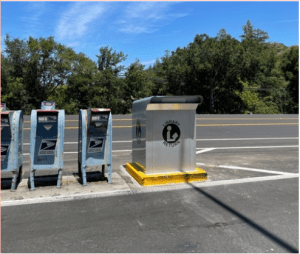
    There is also a book drop for returning library materials on Lucas Valley Road in Marinwood. It is just east of the intersection with Las Gallinas Avenue, on the south side of the road, next to the mail boxes in front of the bus stop. This book drop is available for convenient drive-up returns 24/7 and may be used to return materials from any public library in Marin County. See map for location

    We are now offering automatic renewals of any items that can be renewed. If an item can be renewed (i.e. if there’s no one waiting for it, and it hasn’t already been renewed the maximum number of times), then it will automatically be renewed. Please be sure to check your library reminder notices for any items coming due, as not all items can be renewed. (Automatic renewal does not apply to eBooks.)

    The Library does not keep records of your borrowing without your permission. However, when you enable the Borrowing History feature, the system will start building a list of all the titles you borrow. Your Borrowing History page is visible only to you.

    You can turn on the Borrowing History feature in the registration process and start saving your titles immediately, or do so later. 

    To enable or disable Borrowing History

    1. Log in to your account.
    2. On the menu, click My Settings.
    3. On the My Settings page, under the Account Preferences heading, find your Borrowing History setting.
    4. Click Change.
    5. On the Borrowing History page, click the current setting to change it.
    6. Click Save Changes.
    7. You’ll see the message “Your new information has been saved.”

    To view your Borrowing History

    1. Log in to your account.
    2. On the menu, click My Library Dashboard.
    3. Under the My Borrowing summary on the left of the page, click Borrowing History. On a tablet or smartphone, tap the My Borrowing button first to display the My Borrowing summary.
    4. The page displays your recently returned items. Click the View all Borrowing History link to see the complete list.

    Notes:

    • You can rate items you have checked out from your Borrowing History page by clicking a star. Rating an item also adds it to your Completed shelf.
    • You can manually add an item in your Borrowing History to your Completed, In Progress or For Later shelf using the button at the right of the item.
    • It is not possible to search or sort items in your Borrowing History. We recommend adding items to your Completed Shelf, where you can sort them by title, author, date added or rating. You can also filter your Completed Shelf by categories such as format, author and audience. 
  • eBooks & Streaming Movies

    You can get a library card either by applying online or in person at the library.

    Applying Online

    You can apply online for an instant library card. To use the online application, you need to be a resident of Marin County. You will be able to access online resources and place holds on items for pickup. (Some online resources may take up to 24 hours to become available). When you come into the library, you can also get a physical library card.

    If you live outside Marin County, you will need to apply in person at the library.

    Applying In Person

    To apply in person at any branch, please let a member of the staff know.

    If you are a visitor from out-of-state, you can apply for a Visitor’s Card. It costs $10 and is good for 3 months.

    Whether or not you have had a PIN/password before, you can get a new one on the MARINet Request a New Password (PIN) page. You will be emailed a link to reset your PIN/password. 

    PIN/passwords can contain numbers and/or letters and must be from 4 to 30 characters long. 

    You should avoid using common words or phrases and never include personal information. Some combinations, such as repeated characters or patterns, are not complex enough to be a password. 

    Some Library services will refer to a PIN and others refer to a password. These are the same thing. 

    Your access to online library services is determined by your residence address. Get more information, and find out what your “home library” is, on our Access to Online Services page.

    The Library provides several digital options for eBooks and eAudiobooks, including downloadable and streaming versions.  More information is available on our eBooks page.

    You will need your library card and password to access these resources.

    Further restrictions apply to some resources, including Hoopla. Learn more.

    • Overdrive/Libby: 15 checkouts, 15 holds, checkout for 7, 14 or 21 days
    • Hoopla: 8 checkouts per month, checkout for up to 21 days
    • Enki: 10 checkouts, 10 holds, checkout for 21 days

    Downloading vs streaming depends on your situation - here are the pros and cons for each.

    Downloading: 

    Pros = no WiFi needed once you've downloaded files
    Cons = Uses a lot of storage; one user at a time

    Streaming:

    Pros = No storage required; multiple users at once
    Cons = Need constant WiFi access

    Options are available for desktop computers, laptops, tablets, and smartphones, as well as eBook readers like Kindles.  Check out specifics for each collection:

    Get more access to ebooks through the Partner Library feature.  Like Link+ but for OverDrive/Libby ebooks and audiobooks, MARINet patrons can borrow items from partner libraries. 

    Our partners are the Peninsula Library System and NorthNet Library System.  Partner library patrons can borrow items from each other that aren't currently checked out and do not have any holds.


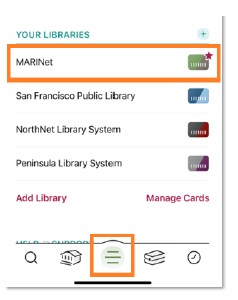
    How does it work in Libby?  Just add Peninsula Library System and NorthNet Library System as new libraries and then checkout available titles.

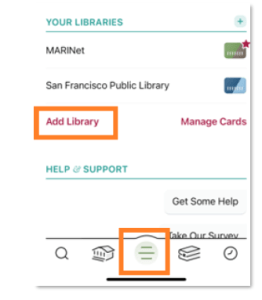
    1. In Libby, click the center bottom button and then "Add Library."

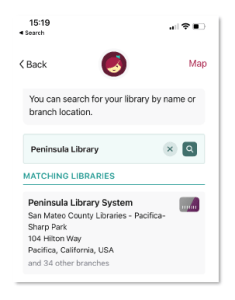
    2. Search for "Peninsula Library" then click on "Peninsula Library System."

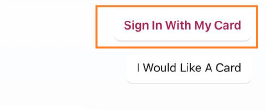
    3. Click on "Sign In With My Card."

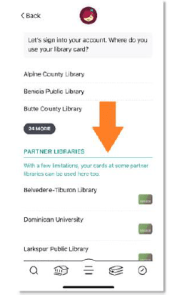
    4. Scroll down and pick your home library under "Partner Libraries."

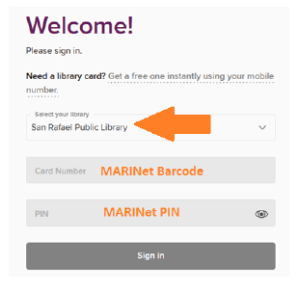
    5.  Sign in using your library card number and PIN.

    6.  Repeat steps for "NorthNet."

    Browse and borrow from MARINet, Peninsula Library System or NorthNet!

    To switch between library catalogs, just click the center button and then the library name.  The current catalog is indicated with a star.

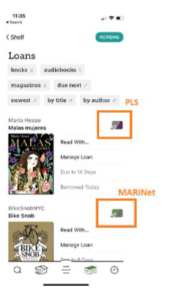
    All loans will show up in your account, no matter which partner library owns them.


    How does it work on the OverDrive site?

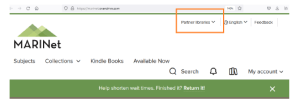
    "Partner libraries" will show up at the top of our OverDrive website:

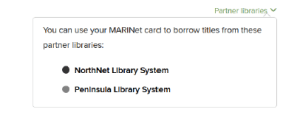
    When you click on "Partner Libraries" a pop-up box will list libraries that you can borrow from:

    Once on the Peninsula Library System or NorthNet site,  select your home library and sign in using your barcode and PIN.

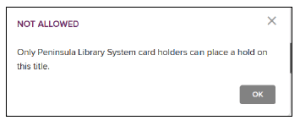
    Patrons will only be able to borrow materials that are available.  (On Libby, patrons only see available items.)  On the OverDrive website patrons will see everything - even titles you can't borrow.

    If patrons try to borrow a title that has holds, they will get this error message:

    Yes! You can reach us using our online contact form. We will reply as quickly as we can.

    You can also reach us by phone to your local branch during open hours.

    Yes, please. Returning eBooks and audiobooks as soon as you have finished with them makes them available sooner to other patrons. To return OverDrive materials early, follow these instructions. (Hoopla eBooks don’t need to be returned, as these are available to multiple patrons at the same time).

    Access issues of Consumer Reports from 2014 to the current issue through Flipster.

    Tip: To see back issues, click on the current magazine cover, and then click on “All Issues” in the menu on the right.  You can also search within one issue or all issues, and browse all the covers.

    • No waitlists – everything is instantly available.
    • Watch up to 8 movies a month. Most movies check out for 3 days
    • Works on most devices, either through a browser or apps available for iOS, Android, Chromecast, Apple TV, Roku & Fire TV.
    • Access to Hoopla is free with your library card. Restrictions apply based on your home address.

      Need help?  Visit the Hoopla help pages for more information, apps and troubleshooting.

    • No waitlists – everything is instantly available.
    • Watch up to 8 movies a month. Films check out for 3 days.
    • Works on most devices, either through a browser or apps available for iOS, Android, Chromecast, Apple TV and Roku.
    • Access to Kanopy is free with your library card. Restrictions apply based on your home address.

    Starting November 1, Kanopy is replacing play credits with a ticket system. Learn more.

    Need help? Visit the Kanopy help pages for more information, apps and troubleshooting.

    The Library provides access to digital magazines through OverDrive and Flipster:  

    OverDrive has online access to hundreds of popular magazines for adults, children and teens.
    Flipster provides access to Consumer Reports.

    More details are available on our Magazines & News page.

    You will need your library card and password to access these resources.

    Further restrictions apply to some resources, including Flipster. Learn more.

    The Library provides access to free streaming services for movies, TV, and music. 

    Hoopla - offers popular streaming movies and TV, as well as eBooks, audiobooks, comic books and music.  Also check out Hoopla Children’s categories for a large selection for kids.

    Kanopy - features classic and world cinema, indie films and top documentaries, as well as instructional films and lessons, including the Great Courses series.  Also check out Kanopy Kids for movies, TV and learning videos for children.

    Find out more details on our Movies & TV page and Music page.

    You will need your library card and password to access these resources.

    Further restrictions apply to some resources, including Hoopla & Kanopy. Learn more.

  • Email Subscription

  • Events & Programs

    If you are a person with a disability and require an accommodation to participate in a County program, service, or activity, requests may be made by calling 415-473-4381 (Voice), Dial 711 for CA Relay, or by submitting a Disability Accommodation Request at least five business days in advance of the event. We will do our best to fulfill requests received with less than five business days’ notice. Copies of documents are available in alternative formats upon request.


    Solicitud de Adaptación ADA

    Si es usted una persona con una discapacidad y necesita una adaptación para participar en un programa, servicio o actividad del Condado, por favor llame a 415-473-3220 (Voz), Servicio de Retransmisión de CA 711, o presentando una Solicitud de Adaptación por Discapacidad con al menos cinco días hábiles de anticipación al evento. El Condado hará su mejor esfuerzo para satisfacer las solicitudes recibidas con menos de cinco días hábiles de antelación. Hay copias de los documentos disponibles en formatos alternativos, previa solicitud.

    If you would you like to present an event, class or program at the Marin County Free Library, please complete and submit the Presenter Submission Form to be considered for future library programming needs.

    Consult the library’s Program Policy.

  • Fines & Fees

    We no longer charge late fees on any of our items, including Link+ materials. 

    Replacement fees for any lost or damaged materials still apply. 

    Please note that items belonging to the Dominican University library may still be subject to late fees. All other libraries in Marin are no longer charging late fees. 

    Late Fee Limits

    If you owe more than $10, you will need to pay down your balance in order to check out again.

    Lost or damaged beyond use
    List price

    Lost or damaged part of multi-part audio set
    $10 per disc

    For lost or damaged Link+ items, please see Link+ FAQs.

    The library generally does not accept personally purchased replacements.

    Paying fines and fees for items owned by Marin County Free Library:

    We no longer charge late fees on our items. Replacement charges for lost and damaged items still apply.

    Charges for any lost or damaged item can be paid:

    • Online by credit card.
      Log in to access the Fees page of your account, using your library card number and PIN/password. Select the fees you wish to pay, then click “Pay selected” or “Pay all”.
    • In person by credit card at a self-check machine.
    • In person by cash, check or credit card.

    Paying fines and fees for items owned by other libraries of Marin:

    Fines and fees charged by other libraries can be paid:

    • Online by credit card.
      Log in to access the Fees page of your account, using your library card number and PIN/password. Select the fees you wish to pay, then click “Pay selected” or “Pay all”.
    • In person by credit card at a self-check machine.
    • In person by cash or check at the owning library.

    The easiest way to see if an item is owned by another library is to look at the barcode on the front of the item. If it says "Marin County Free Library", then our policies would apply. If it shows the name of any other library, then the policies of that library would apply. 

  • How to Find Items

    For tips on how to search the catalog, please see the Catalog Help section on Searching & Filtering.

    For information on requesting items in the catalog, please see the Catalog Help section about placing holds, under Borrowing > On Hold.

    You can also ask a staff member. We are happy to help!

    If you're having trouble using the online catalog, you can take a look at the Catalog Help section on Searching & Filtering or ask a staff member for help.

    If what you're looking for is not in our catalog, there are a few other things you can try:

    For digital items like eBooks:

    • Many of our digital items are not listed in our catalog, as our catalog is shared with other libraries that may not offer the same access to digital collections. 
    • For eBooks and audiobooks, you can search OverDrive and Hoopla directly. (OverDrive titles are usually in our catalog, but Hoopla titles are not).
    • For streaming movies and TV, search Kanopy and Hoopla.
    • For streaming music, search Hoopla.

    For physical items like books and DVDs:

    Link+ is a group of more than 60 libraries across California and Nevada that you can borrow items from for free, using Marin County library card. If an item is not available from Marin County libraries, it may be possible to borrow it from one of our Link+ partners.

    To request an item through Link+ follow these steps:

    1. Search our catalog first to make sure we don’t own the item that you wish to borrow.*
    2. Click on the Link+ button to search in the Link+ catalog.
    3. When you locate the item, click on the title.
    4. Click on the “LINK+ libraries have this item” link to see if the item is Available.
    5. Click on the blue “REQUEST THIS ITEM” link.
    6. Click on the down arrow and select the library that is your MARINet home library. (What is my home library?)
    7. Click “Submit".
    8. If the item can be borrowed from LinkPlus, you will be asked to enter your name, your 14-digit library card number and your PIN. You must also select a pickup location, which can be any MARINet Library. (It does not need to be your home library.)

    *Note: If the item is available in our catalog, you will receive the message, "You cannot use LINK+ to request items that are available...".

    If an item cannot be located through a library in Marin County or Link+, you can place an Interlibrary Loan (ILL) request for the item by calling or visiting your local branch library. We will search academic and public libraries in the United States for the requested item using WorldCat.

    There is a nonrefundable $5.00 charge to initiate the search for books, microfilm, DVDs or audio books. This fee does not guarantee the receipt of the material. Occasionally, a lender may require additional fees for postage or copying charges before they will loan an item; you will be contacted if any additional charges are necessary. The ILL process can take from 4 to 6 weeks.

    For information on requesting items from within Marin County, please see the Catalog Help section about placing holds, under Borrowing > On Hold.

    We welcome your purchase suggestions! Each request is carefully considered.

    We process all suggestions for purchase through our online catalog. Please log in and use “Suggest a Purchase” in the left menu of your Library Dashboard. You will be able to track your suggestions to see if they are purchased.

    Before suggesting a purchase, you can also try searching Link+ and our digital collections: eBooks & Audiobooks, Streaming Movies & TV, and Streaming Music

    Yes! You can reach us using our online contact form. We will reply as quickly as we can.

    You can also reach us by phone to your local branch during open hours.

  • Library Cards

    You can get a library card either by applying online or in person at the library.

    Applying Online

    You can apply online for an instant library card. To use the online application, you need to be a resident of Marin County. You will be able to access online resources and place holds on items for pickup. (Some online resources may take up to 24 hours to become available). When you come into the library, you can also get a physical library card.

    If you live outside Marin County, you will need to apply in person at the library.

    Applying In Person

    To apply in person at any branch, please let a member of the staff know.

    If you are a visitor from out-of-state, you can apply for a Visitor’s Card. It costs $10 and is good for 3 months.

    Whether or not you have had a PIN/password before, you can get a new one on the MARINet Request a New Password (PIN) page. You will be emailed a link to reset your PIN/password. 

    PIN/passwords can contain numbers and/or letters and must be from 4 to 30 characters long. 

    You should avoid using common words or phrases and never include personal information. Some combinations, such as repeated characters or patterns, are not complex enough to be a password. 

    Some Library services will refer to a PIN and others refer to a password. These are the same thing. 

    Your library card number is the 14-digit number on the back of your library card, starting with "211110...". When entering your library card number, do not include spaces. e.g. 21111012345678.

    If you have an account, but can't find your library card number, please contact us so that we can help.

    Your library card gets you more than just books! Here are some of the things you can do with your library card:

    • Check out books, DVDs, books on CD, and music CDs
    • Check out eBooks, audiobooks and digital magazines, and stream movies, TV and music
    • Access online resources for learning and research, including homework help
    • Use the library's public computers and internet
    • Get free or discounted museum passes and free parking passes to local parks

    Note: Access to eBooks and other online services may be limited based on your residence. Learn more.

    Your Marin County Free Library card can be used at any public library in Marin, including our branches as well as other libraries in Marin. Together, our libraries make up a consortium called MARINet. 

    Please note: Borrowing policies (including check-out periods and overdue fines) for items belonging to other libraries in Marin may differ from those of the Marin County Free Library.

    If your library card is lost or stolen, please report it immediately by phone or in person at any branch.

    You are responsible for any materials checked out on your card until the card is reported lost or stolen.

    To get a replacement card, you will need to bring your photo I.D. to any branch.

    Library cards automatically expire every 5 years, so that we can confirm we have your current address and phone number. If your card has expired, you may renew your card by contacting any branch.

    For students in participating school districts, a Student MyCard account enables a student to use their student ID number to access library services. Learn more on the Student MyCard page.

    Now available on the MARINet library app, the multi-account feature allows you to add multiple accounts, making it easy to manage individual accounts within the app – convenient for families or anyone supporting others using the library.

    How to Add an Account

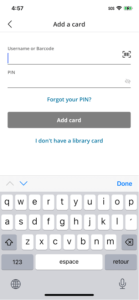
    It is easy to add more than one account. This is done by adding cards from the My Library Cards screen.

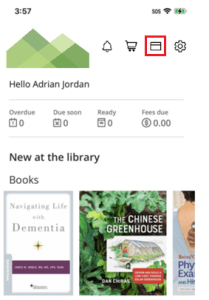
    1. On the Home Screen, tap on the library card icon.

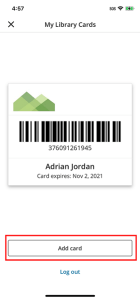
    2. From the My Library Cards screen, tap 'Add card.'

    3. Enter the login credentials for the card you would like to add. Logging in requires:

    • Library barcode (this is the 14-digit number on the library card) OR username.
    • PIN (personal identification number).

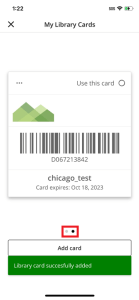
    4. Upon successful login, the library card will be added, but will default to an “inactive” state. If you would like to switch to this account immediately, then tap 'Use this card'.

    The dot indicators correspond with the number of accounts that have been added. In the example below, there are two accounts. The active account is always in the first position.

    Some additional notes:

    • There is a maximum limit of 8 cards that can be added.
    • When you log in with a new account from the login screen, that card is automatically added and will become the active account.
    • Added accounts do not persist across multiple devices you might have the library app installed on. Accounts need to be added for each device separately.

    How to Switch an Account

    The active account can be switched from multiple places in the library app.

    Switching accounts from My Library Cards

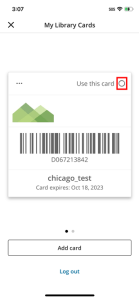
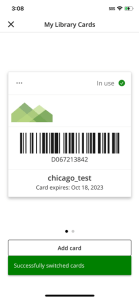
    1. Tap on the library card icon on the top of the Home Page to access My Library Cards.  Swipe to the card that you’d like to activate. (The currently active account is always the first card in the collection of cards).

    2. To activate a card, tap on the 'Use this card' button.

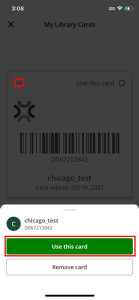
    3. Alternatively, tap on the ellipsis on the card to be activated, then tap on the 'Use this card' button from the bottom sheet.

    4. Upon successful activation, a success message will be presented, and the activated card will take the first position.

    Additional notes:

    • A library card is still scannable when in an “inactive” state, so switching the account is not necessary for the purposes of scanning.
    • You can also switch accounts from the Settings screen. Tapping on ‘Manage cards' will take you to the My Library Cards screen.

    Switching Accounts Using the Avatar

    Tapping on the user avatar brings up the account switcher. The avatar is visible on the following screens:

    • My Borrowing
    • My Shelves
    • Unregistering account
    • Bib page

    To switch accounts using the avatar:

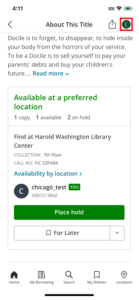
    1. Tap on the avatar located at the top right of the screen. 

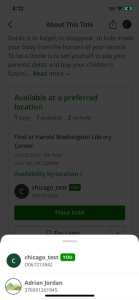
    2. The account switcher will display from the bottom of the screen. Select the account you’d like to activate. (The currently active account is the first one presented, and displays the ‘YOU' label.)

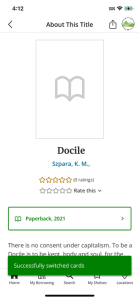
    3. Upon successful activation, a success message will be presented. The avatar will be updated to the newly active account.

    How to Remove an Account

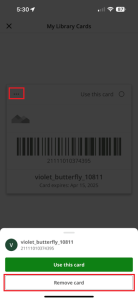
    Removing accounts from the library app is done from the My Library Cards screen.

    1. On the Home Screen, tap on the library card icon

    2. Swipe to the card that is to be removed.

    3. Tap on the ellipsis, then tap on the 'Remove card' button. 

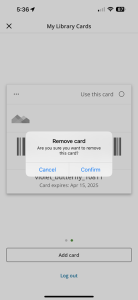
    4. The user will be asked to confirm removing the card.

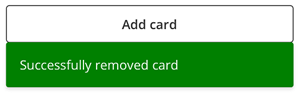
    5. Tapping on 'Confirm' removes the card, and a success message is displayed.

    Additional notes:

    • The currently active account cannot be removed. To remove the card for the active account, activate a different card first.
    • Logging out of the app does not remove cards. Cards are removed explicitly by following the steps above.  However, deleting the app does remove all the stored accounts. Upon reinstalling the app, cards will need to be added again.
    • Unregistering an account removes the card from the app.

    If a user does not want anyone adding or switching to their account, a user can change their PIN number. This will mean any other user attempting to switch to the account will need to remove and re-add the account with updated credentials.

    Note: adding an account requires both the barcode (or username) and the PIN for the account. A user cannot add an account with only the barcode (or username).

    Frequently Asked Questions

    Will clearing my phone's cache clear the credentials?
    Yes, clearing the phone's cache, storage, or data will clear out the stored login credentials and cards will need to be added again.

    Do individuals have the ability to opt-out of having multi accounts enabled in their app settings?
    Currently, individuals do not have the option to opt out of multi-accounts.

    If a user does not want anyone adding or switching to their account, a user can change their PIN number. This will mean any other user attempting to switch to the account will need to remove and re-add the account with updated credentials.

    Note: adding an account requires both the barcode and the PIN for the account. A user cannot add an account with only the barcode.

  • Meeting Rooms & Tutoring

    We do not have any meeting rooms that can be reserved by the public. All of our community rooms are used solely for library and partner events.

    Library premises are available for the use of members of the public to meet their needs in accessing information. As part of its educational mission, the library permits tutoring on the premises in accordance with our Tutor Policy.

    Independent tutors are not sponsored by the library. All arrangements must be made between the tutor, student, and parents.

    • Tutoring activities are to be confined to group study areas, thus keeping the rest of the Library relatively quiet for individual reading and study. Tutoring sessions must be kept as quiet as possible.
    • Because space in group study areas is limited, Library staff may ask tutors to share tables or shift personal items to make more space available for use. Please be courteous to fellow library users.
    • Designated areas may not be available if needed for Library programs or activities. Tutors should re-schedule or inquire about alternate space.
    • Group tutoring is discouraged. If it is necessary, the group should be confined to one table. No more than three students should be involved in group tutoring.
    • Tutors are responsible for the behavior of the students being tutored during the tutoring session.
    • It is preferred that the parent remain in the Library while the child is being tutored. The Library assumes no responsibility for children left unattended.
  • Museum & Park Passes

    You can get free or discounted museum passes with your library card!

    We have 2 types of museum passes:

    • Discover & Go – free & discounted passes to many different museums and cultural institutions, that you reserve online and print from home.
    • Bay Area Discovery Museum – physical passes for free admission to the Bay Area Discovery Museum in Sausalito, that you reserve and pick up from the library.

    For more details, please see Museum Passes.

    Enjoy your visit to local parks with a hiking backpack from the library. Backpacks check out for one week and can be renewed.

    You can check out a backpack from any of our branches. They're not holdable, but you can check current availability in the library catalog:
    California State Library Parks Pass Backpack.

    Backpacks must be returned to the library where they were checked out.

    Each backpack includes:

    • Binoculars
    • Hiking poles
    • CA State park pass
    • Pocket guide: CA Wildlife
    • Pocket guide: CA Trees & Flowers
    • Microscope
    • Flashlight
    • Horn
    • Compass
    • 3 dry bags

    For information on borrowing free parking passes for local parks, please see Park Passes page.

  • Online Learning & Research

    You can get a library card either by applying online or in person at the library.

    Applying Online

    You can apply online for an instant library card. To use the online application, you need to be a resident of Marin County. You will be able to access online resources and place holds on items for pickup. (Some online resources may take up to 24 hours to become available). When you come into the library, you can also get a physical library card.

    If you live outside Marin County, you will need to apply in person at the library.

    Applying In Person

    To apply in person at any branch, please let a member of the staff know.

    If you are a visitor from out-of-state, you can apply for a Visitor’s Card. It costs $10 and is good for 3 months.

    Whether or not you have had a PIN/password before, you can get a new one on the MARINet Request a New Password (PIN) page. You will be emailed a link to reset your PIN/password. 

    PIN/passwords can contain numbers and/or letters and must be from 4 to 30 characters long. 

    You should avoid using common words or phrases and never include personal information. Some combinations, such as repeated characters or patterns, are not complex enough to be a password. 

    Some Library services will refer to a PIN and others refer to a password. These are the same thing. 

    Your access to online library services is determined by your residence address. Get more information, and find out what your “home library” is, on our Access to Online Services page.

    Yes! You can reach us using our online contact form. We will reply as quickly as we can.

    You can also reach us by phone to your local branch during open hours.

    The Library provides several online resources for Spanish-speakers. See Disponible en Español.

  • PIN/Password

    Whether or not you have had a PIN/password before, you can get a new one on the MARINet Request a New Password (PIN) page. You will be emailed a link to reset your PIN/password. 

    PIN/passwords can contain numbers and/or letters and must be from 4 to 30 characters long. 

    You should avoid using common words or phrases and never include personal information. Some combinations, such as repeated characters or patterns, are not complex enough to be a password. 

    Some Library services will refer to a PIN and others refer to a password. These are the same thing. 

  • Public Computers & Equipment

    Yes, all of our branches* have Chromebooks and Wi-Fi Hotspots that you can borrow. Contact your local branch about availability. It is possible to check them out separately or together, depending on your preference and branch availability.

    Currently, Chromebooks check out for 3 weeks with no renewals; it is not possible to place a hold on these items online. Wi-Fi Hotspots check out for 3 weeks, can be renewed, and holds can be placed online. Please check with your local branch for more detail. Chromebooks and Hotspots should be returned to the branch where they were checked out. Please return these items to branch staff during open hours. Please do not place them in the Bookdrop, as they are fragile.

    Chromebooks are simplified laptop computers based on Google’s Chrome browser. Chromebooks are fast, secure and easy to use. They are Internet-only devices, and require Wi-Fi to provide online access via Google Chrome. Using cloud computing, Chromebooks do not run traditional software or store files. All of the Chromebook’s operations take place using the Chrome web browser and web applications either through a user’s free Google account or in Guest mode (for those without Google accounts.) Chargers are included with the Chromebooks.

    Hotspots are portable pocket-sized mobile routers, which you can take with you to set up an Internet connection. Instead of having to find a hotspot, like at a local library or other business, you can bring the Internet to you through this device and access Wi-Fi through it. Multiple devices can connect to the Hotspot to access the Internet. The Library is providing the data service to power the Hotspots. Chargers are included with the Hotspots.

    While there are no overdue fees, in the case of a damaged or lost device, you will be responsible for replacement charges.

    *Other Marin libraries may also have devices you can borrow. Please check their websites for more information.

    Public computers are available at all of our locations. 

    Bolinas: Book by phone at 415-868-1171 or in person
    Civic Center: Reserve online
    Corte Madera: Reserve online
    Fairfax: Reserve online
    Inverness: Reserve online
    Marin City: Reserve online
    Novato: Reserve online
    Point Reyes: Reserve online
    South Novato: Reserve online
    Stinson Beach: Drop-in computer use

    Just need to print?

    Mobile printing is available without having to use the public computers. For more information, visit our MobilePrint page or call one of our branches during open hours.

    • Turn on:  

      • Open Chromebook, it should turn on automatically.
      • If it does not, try pressing the power button.
      • If it still does not respond, try plugging in the charger and pressing the power button again.
      • Click arrow at center of screen. Click arrow on next screen. This is an internet-only device, providing online access via Google Chrome.
    • Turn off:  

      • Select Exit session on bottom task bar, then click sign out now.
      • Select Shut down at bottom left of screen.
      • Note: When you end a Chromebook session, all personal data (downloads, browser history, logins, etc.) is erased.
      • Holding down the power button for a few seconds is another way to turn off the Chromebook.
    • Connect to Wi-Fi:  

      • On bottom task bar, select Wi-Fi Network.
      • Select Wi-Fi Network to join.
      • Type Network Password.
      • Select Connect.
    • Connect to Mobile Print service:  

      • Go to our Mobile Print webpage.
      • Follow instructions for Printing from your Computer and choose your print location from the list of library branches on the right.
    • Adjust the volume:  

      • You can adjust the volume using the keyboard shortcuts directly to the left of the power button.
    • Save to flash drive:  

      • Note: Flash drives are compatible with Chromebooks, but because no applications are installed on Chromebooks, be aware that some file formats will not be read (i.e. Word, Excel). 
    • Learn more:  

    • Ready to return?:  

      • Return your Chromebook/Hotspot to library staff during open hours. Please do not place them in the bookdrop. They must be returned to the same location they were picked up from. Remember to include all parts of the kit - device, charger, case!

    Accessible Workstations are public access computers designed to provide online access for individuals who may be blind, have low vision, or have disabilities that affect mobility/dexterity.

    Each station includes special assistive software and hardware such as:

    • Zoom Text large print keyboard with Reader software
    • Special pointing devices available on request (ex. trackballs, touchpads)

    An accessible Workstation is located at the following Marin County Free Library branches:

    • Civic Center Library
    • Corte Madera Library
    • Fairfax Library
    • Marin City Library
    • Novato Library
    • Point Reyes Library
    • South Novato Library

    Session lengths on Accessible Workstations at branches may vary (30/60 minutes) and may only be extended by staff. Non-qualified patrons will not be permitted to extend time beyond the designated length.

    Anyone may use an available Accessible Workstation but patrons with a verified disability qualify for special privileges such as reservations by phone and next-session priority for drop-in use.

    To qualify for Accessible Workstation privileges, a patron must:

    • Have a current MARINet library card
    • An Approved Application for Adaptive Computer Station which requires proof of disability (ex. such as disabled parking placard, disabled transit pass, a letter on official letterhead from a doctor, social worker, registered nurse, psychologist; a letter on official letterhead from a learning disabilities, rehabilitation or special education teacher).

    Application will be approved by the Branch Manager. Patrons who qualify may reserve the ADA workstation by phoning the library branch information desk during open hours.

    When not in use by ADA qualified patrons, these workstations may be used by others.

    Our network name is Library. No password is required.

    You will need to agree to our Acceptable Use Wireless Policy. After reading our Wireless Policy, click on “Accept” at the bottom of the page.

    Your computer or device will need to have an activated wireless network card.

    If you normally use other wireless networks, your computer may not connect automatically. You may have to go into the “settings” area of your device to find our network.

    Because laptops and devices vary greatly, Marin County Free Library staff cannot offer technical assistance with establishing a wireless connection nor handle privately owned equipment. You are responsible for setting up your own equipment. If you are not familiar with configuring computers or networking, we recommend consulting your device’s manual.

    Wireless Network users will not be able to use FTP (file transfer protocol), file share, or outgoing SMTP (simple mail transfer protocol). You can access web-based email using a laptop such as gmail, yahoo mail, etc.

    The Marin County Free Library is not responsible for any changes that you make to your computer’s settings and cannot guarantee that your hardware will work with our wireless connection. We recommend that users read their PC and/or Wireless manuals thoroughly.

    Printing is available from all library public internet computers.  You can also print from your laptop or mobile device.

    Library cardholders and Internet Only cardholders receive $10.50 worth of FREE prints per week.  You may print any combination of black and white and/or color pages that does not exceed the weekly $10.50 allotment.  (Maximum of 70 black and white prints per week, or 10 color prints per week.) 

    Additional black and white prints are 15 cents per page. Color prints are 1 dollar per page.

    Print machines accept cash only (no credit/copy cards).

    Please preview your document for accuracy by using Print Preview and help us save paper and toner.

    You can print from your laptop or mobile device to the public printers at any of our branches. 

    For details and instructions, visit our MobilePrint page.

    With our MobilePrint service, you can print to the Library’s public printers from your computer or mobile device, or by emailing your document to the printer. 

    For instructions, please see our MobilePrint page.

    The Marin City Library has a 3D printer available for public use by appointment. 

    See more information about 3D printing on our 3D Printing page.

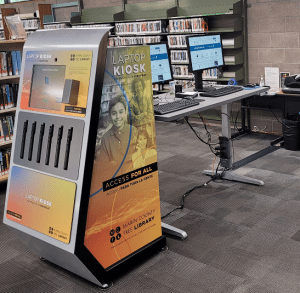
    Laptops are available to borrow from the Laptop Anytime Kiosk at the Novato Library. Use your library card to check out a laptop for 2 hours of in-library use.

    You'll be able to connect to wi-fi, as well as use the same print allocation system that serves the library public computer workstations to access up to $10.50 in free prints per week.


    How can I borrow a laptop?
    Follow the on-screen instructions. These instructions include reading and accepting the Loaner Laptop Terms of Use.

    How long can I borrow a laptop?
    The time limit is 2 hours of logged in use per day.

    Do I have to sign a laptop use form?
    No written signature is required but you must read and accept the Loaner Laptop Terms of Use electronically each time you borrow a laptop.

    Do you restrict where I can take the kiosk device?
    The device should be used within the library.

    Is there a receipt for borrowing?
    No. You are responsible for returning the laptop on a timely basis.

    What do I do if the laptop is not functioning properly when I first borrow it?
    Return the laptop as soon as you realize there is a problem with it.  Please choose the displayed option that most closely describes the problem you had with the laptop.  Then check out another laptop if available.

    Is there a late fee and how much is it?
    There is no late fee.  If the laptop is not returned, it will be charged against your library account.

    What happens if I lose or damage the laptop?
    You are responsible for the loss or damage up to the total cost of the laptop per the Loaner Laptop Terms of Use you accepted when borrowing a laptop.

    Why can't I borrow a laptop someone else just returned?
    The kiosk performs functions such as deleting the previous patron's data and recharging the battery.  This takes 6 minutes and during that time the kiosk device cannot be borrowed.

    Why are some of the laptops not able to be borrowed?
    A laptop cannot be borrowed while it is in charging mode or if one was reported damaged. Charging laptops will show up as yellow on the kiosk screen. Damaged devices will show up as yellow with a wrench icon. Damaged devices will be repaired and replaced as soon as possible.

    How do I connect to the wireless network?
    The laptop will automatically connect to the library's wi-fi network.

    When I return the laptop, what happens to any data I have left on it?
    Laptops are wiped clean of data to protect patron privacy after each use.

    Can I store data on the laptop hard drive temporarily?
    Yes. The laptop has a temporary drive T:/ that is wiped clean at the end of each session. We recommend that you use an external storage device or cloud drive and save your work frequently that way. If the laptop reboots or runs out of power anytime during the allotted borrowing period, all data is lost.

    What if I get an electronic virus?
    All equipment provided is guaranteed to be 100% virus free when delivered to you.  If you get a virus while using the laptop, simply reboot the unit and that will eliminate the virus. Be careful to save anything that you've created on the machine as that will also be erased.

    Founded in 1996 and headquartered in the Marin City Library, the WebStars program is designed to empower young people through computer training, opportunities to work with the public in a library setting, and participation in internship programs with local technology companies.  The program trains young people as technology ambassadors. The WebStars then serve our community, offering tutoring and troubleshooting with the following:  Email, word processing, and basic hardware/software maintenance, social media, blogging, and photo sharing, webpage design, photo editing, and animation.

  • Reference Services

    The Anne T. Kent Map & Special Collections Annex collection includes unrecorded surveys of Marin County properties performed by J.C. Oglesby, Richardson, Dodge, Voorhies, Engineering Field Services, Joe Grippi, and more.

    Please visit the Survey Requests page for more information about accessing the survey collections.

    Proctoring at Marin County Free Library

    • The Civic Center Library is the only branch of the Marin County Free Library that offers test proctoring.
    • Test proctoring is available for open book exams only.
    • You must set up an appointment in advance by calling the Reference Desk at 415-473-6058.
    • On the day of the test, you must bring:
      • photo ID
      • any required test-taking materials

    Proctoring at Other Locations

    Santa Rosa Junior College Student Success and Assessment Services Testing Centers in Santa Rosa and Petaluma are available to proctor paper and computerized exams for students enrolled in Independent Study, Online, Correspondence or Distance Education Programs for educational institutions or businesses. Please visit their website for testing information that includes testing dates, locations and financial information. To make an appointment contact (707) 527-4661.

    The Testing Office at San José State University provides proctoring services for exams from other institutions and professional organizations. Please visit their website for testing information, including fees, and information required to request proctoring for an exam.  Please e-mail their office at testing-office@sjsu.edu to request proctoring services.

    Yes! You can reach us using our online contact form. We will reply as quickly as we can.

    You can also reach us by phone to your local branch during open hours.